


Explorer
Everything your child needs to practice and earn play time.
- Worksheets at their level, with hints and worked examples
- Coins and play time, earned from worksheets
- The parent area on your phone: chores, play hours and minutes
Your child does a short math worksheet on iPad. That earns play time for the apps you chose. You set the rules once, and stop being the screen-time cop.
Every family starts with a 7-day free trial.
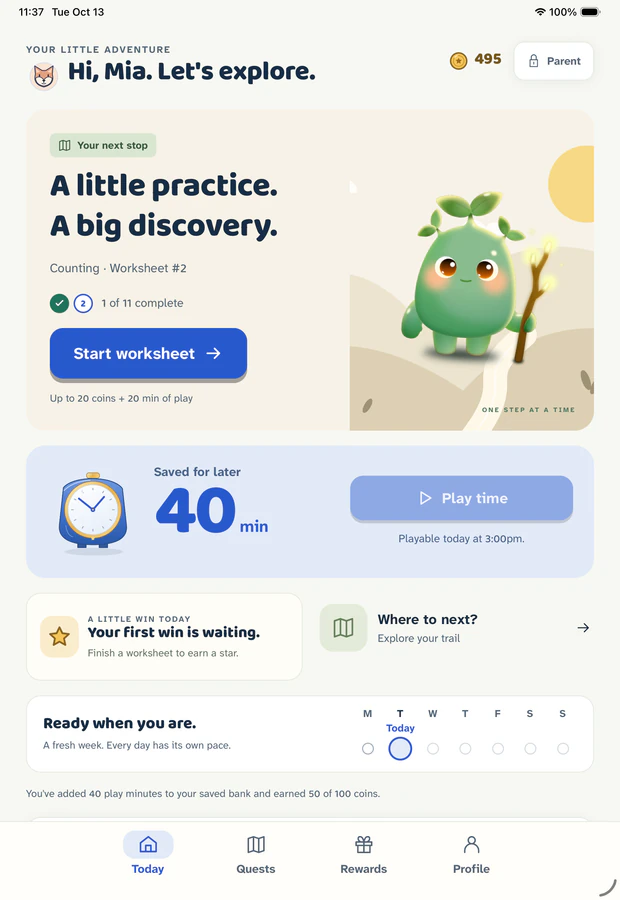
Most screen-time tools just say no. Gakumi gives your child a way to say yes to themselves. They finish a worksheet, minutes land in their bank, and the apps you picked open during the hours you chose. You choose how many minutes; 20 for a gold star is the default.
The deal is built into the app, so you don’t have to enforce it by hand. (Locking apps uses Apple’s Screen Time; see Supported devices.)
Saved for later
plus 20 minutes
Ready to spend in the play hours you set.
Set it up once. Your child practices. The minutes are earned. Sobo walks alongside the whole way.
Pick the apps that count as play and the hours they can be used. Add your child, and connect your own phone with a one-use 10-character code. Then you can run the rules from your pocket.
Locking apps needs Apple’s Screen Time, your approval on your child’s device, and iPadOS or iOS 18 or later.
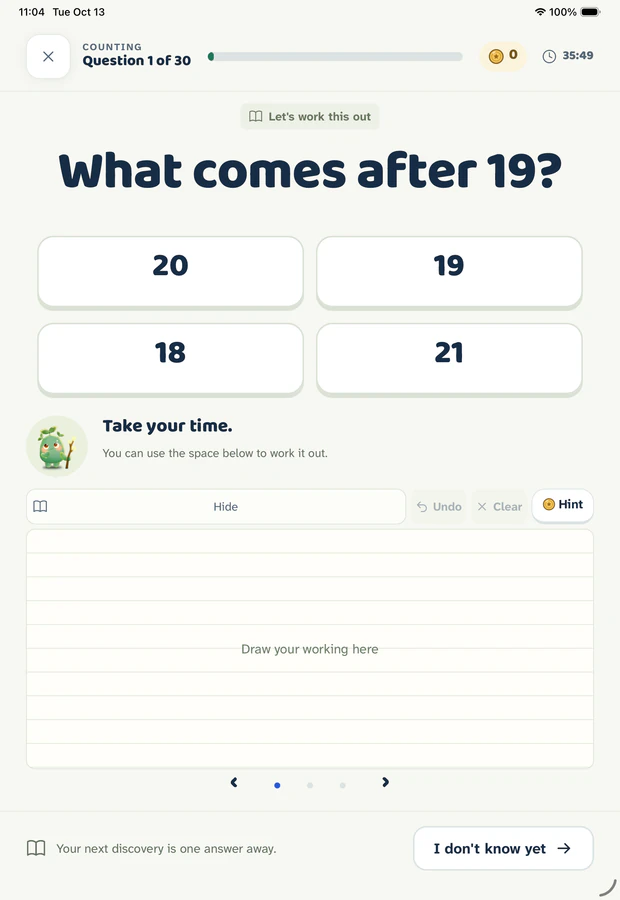
One question at a time, with hints, worked examples and a page for rough work. A wrong answer is a calm nudge, never red. A short placement check at the start finds the right place on the trail.
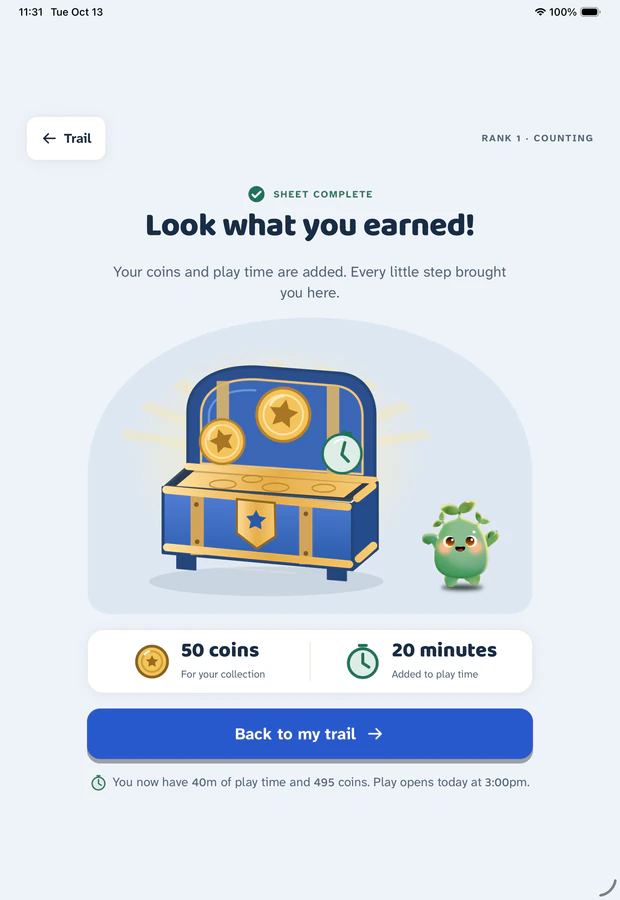
A finished worksheet opens a chest: coins for their collection, play minutes for the bank. The minutes wait for the play hours you set. Approve a chore from your phone and that earns minutes too.
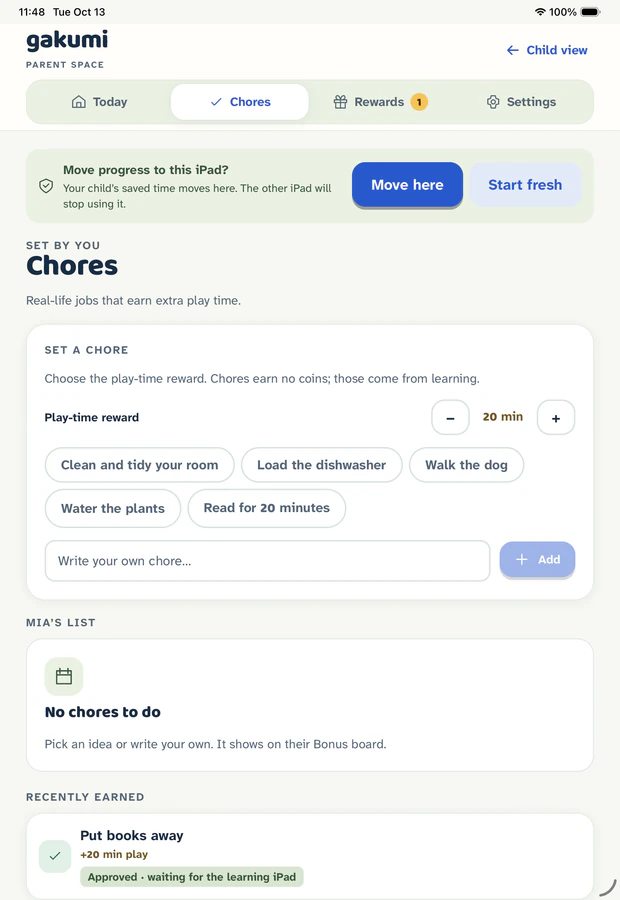
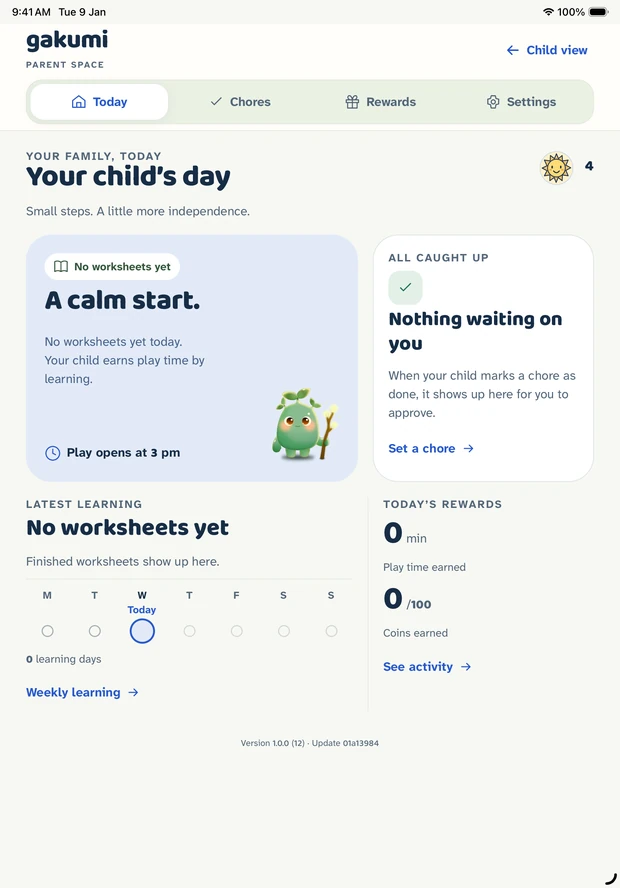
One parent area, with the same four tabs on your phone and in your child's iPad: Today, Chores, Rewards and Settings.
Each child's day, the minutes they have earned, and one short list of what needs you.
Add real-life jobs with a reward in minutes. Approve them from your phone. The next one appears once the last is approved.
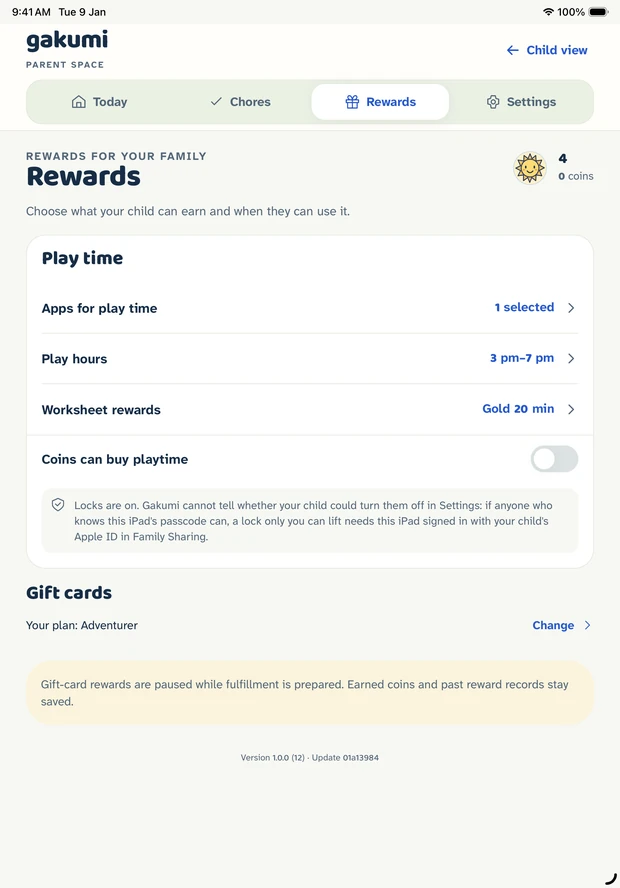
Choose when earned time can be spent and how many minutes a worksheet is worth. Outside play hours, minutes wait.
A card on Today opens the week's worksheets, learning days and skills. Included with the Adventure plan.
A bell collects family updates. Important ones reach your lock screen on your own phone.
Children, answer style for each child, sound, buzz and play warnings. Change them on your phone and they follow.
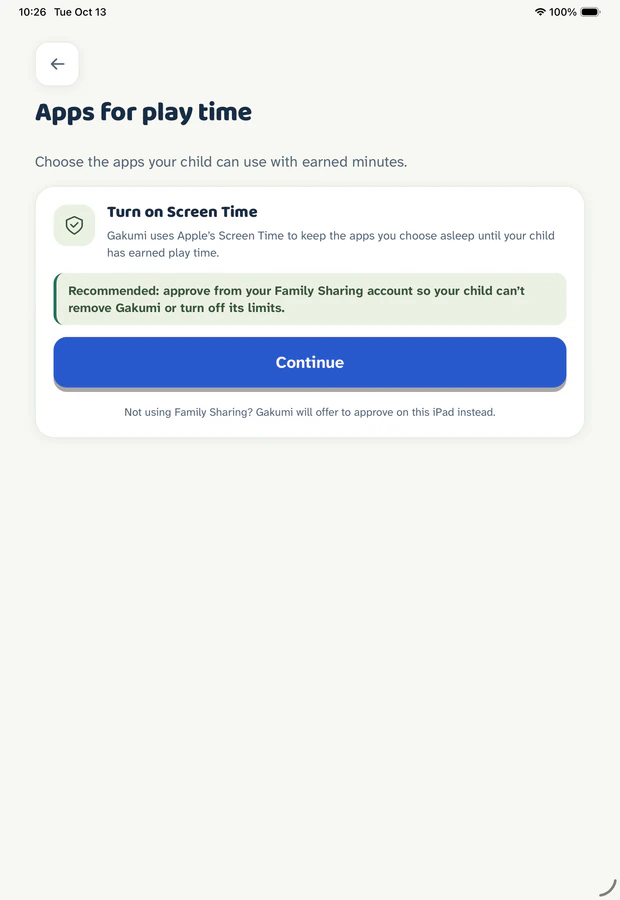
About Screen Time. Locking apps needs your approval on your child's device and iPadOS or iOS 18 or later. Picking the apps happens on that device, behind your passcode. Without Screen Time, children still practice and earn play time, but Gakumi cannot lock any apps.
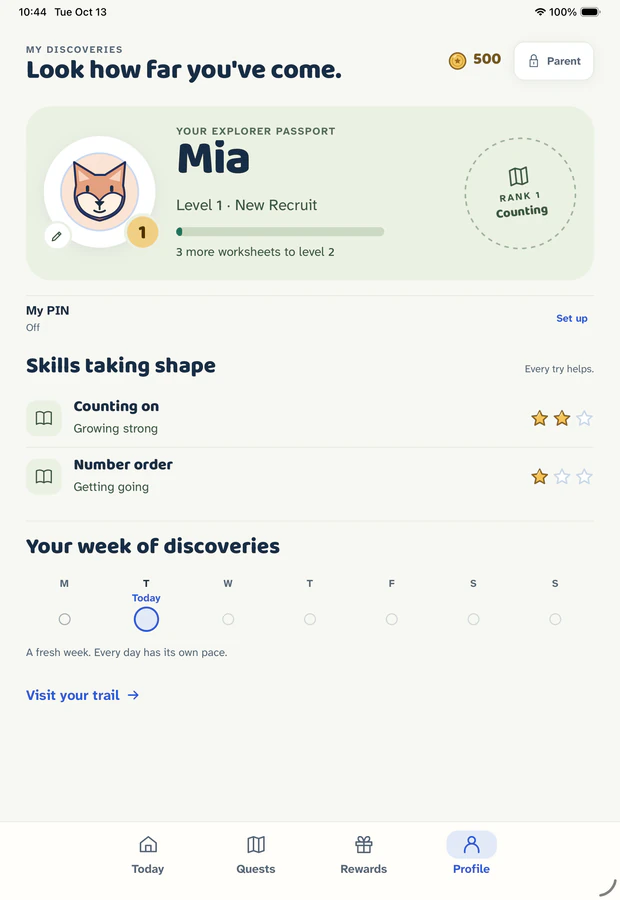
Worksheets, a bank of minutes, a daily goal ring and a calm week.
Shown here on iPad, behind the parent passcode.
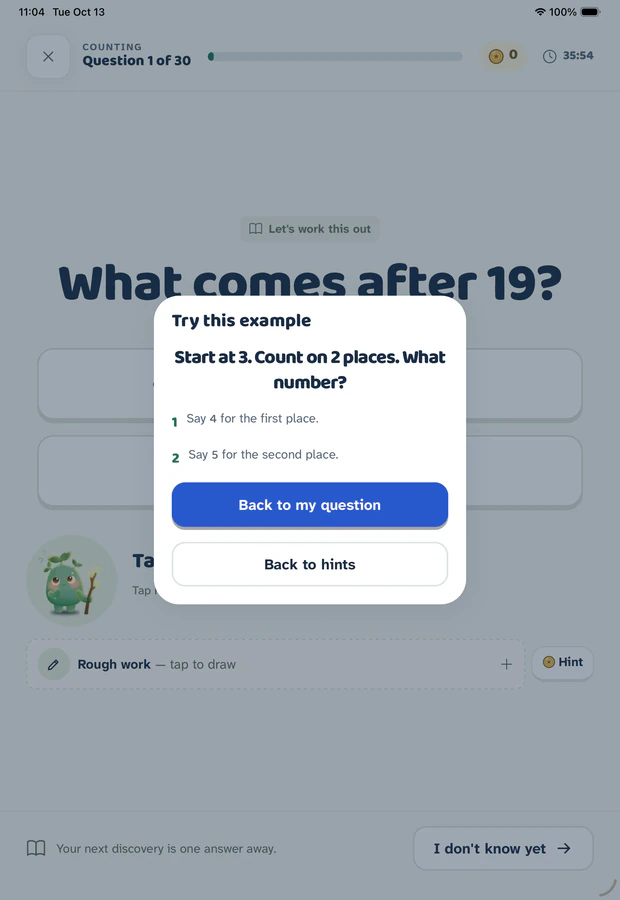
Three things every worksheet in Gakumi has.
Stuck? A hint can take away one wrong choice, or a worked example can show the steps for a similar question. Each costs a few coins, and the cost is shown before anything is spent.
A ruled page sits under every question. Each question keeps its own page, and the ink stays put while the worksheet is open. Write with a finger or an Apple Pencil.
A worksheet with at least 10 answers earns a gold, silver or bronze star. Then a chest opens with coins and play minutes for the bank.
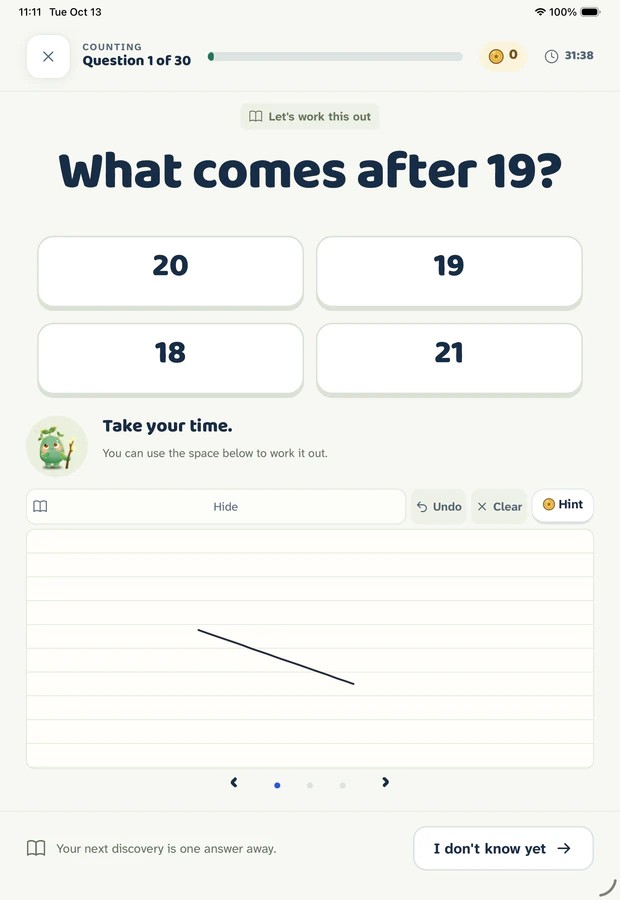
The path around each worksheet stays clear and calm.
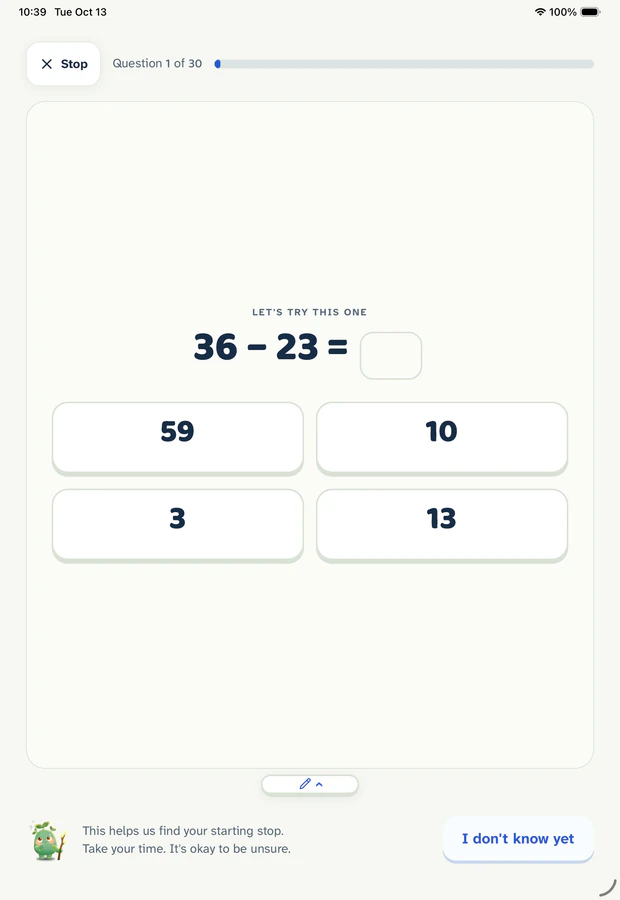
A 30-question check picks the first stop on the trail. It adjusts as your child answers, and “I don’t know yet” is always an okay thing to tap. Finishing it earns a one-time welcome reward. Answer style starts with tapping for children under 7 and an equal mix of tapping and typing from 7, and you can change it for each child.
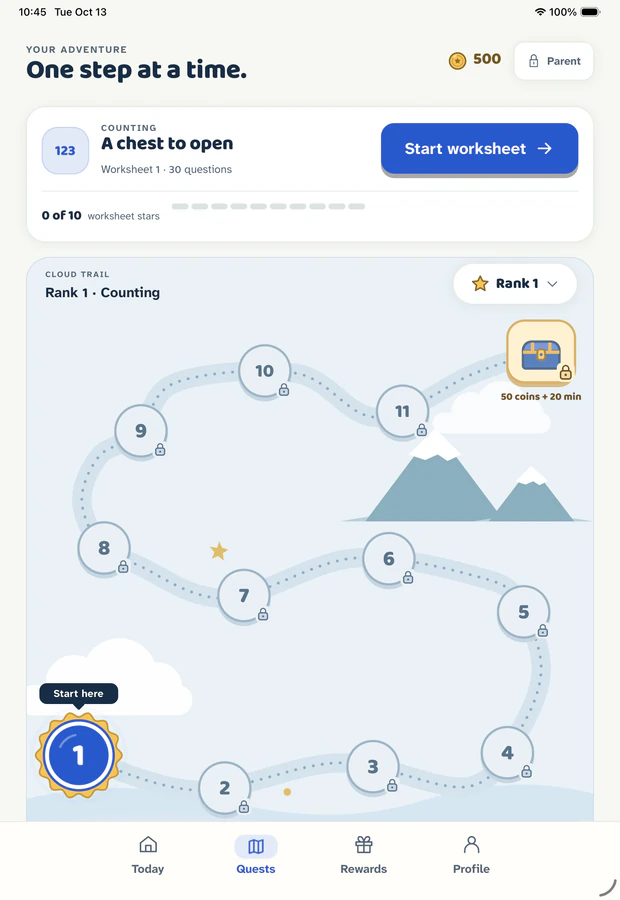
Worksheets sit on a winding trail that ends in a chest. Skills collect stars as your child practices, so there is progress to point at.
A daily goal ring fills once a starred worksheet is done, and it never counts down. The week strip adds a small sun for each day of learning, and a missed day is only a quiet outline.
Your child’s name, age and progress are personal. Here is what we keep, and what we don’t.
The parent area opens with a four-digit passcode you choose. Wrong tries lock it for longer each time.
There are no ads in Gakumi, and the app has no advertising or analytics software. This website sets no cookies either.
You pick the play apps with Apple's own picker. The choice stays on that device.
Up to five children, each with their own progress, saved play time and an optional four-digit PIN.
Subscriptions go through Apple. Gakumi records which plan a family has and never sees card details.
Delete the parent account and the family data Gakumi stores for it from Settings, any time.
Every family starts with a 7-day free trial. Nothing is charged during the trial; afterwards you choose a plan in the app. See the plan prices in the app, set by Apple for your country.
Everything your child needs to practice and earn play time.
Everything in Explorer, plus a closer look and a bigger prize.

Plans are per child. Apple handles billing, and you can cancel any time in your Apple account settings. Weekly reports and gift cards are part of Adventure.
Real screens from the app: what your child sees on iPad, and the parent area you run the rules from.
Your child's iPad
Hints when they are stuck, and a passport of the skills they are building.

Your parent area
Set up the family, choose the rules, and follow the day. Shown on iPad; the same tabs are on your phone.


Built for iPad, with a companion for parents' iPhones.
Gakumi also runs on iPhone if that is what your child uses.
The parent area runs on iPhone with the same four tabs as on the iPad: Today, Chores, Rewards and Settings. It also has an inbox with alerts, and a weekly report on the Adventure plan.
16.4or later
iPadOS or iOS, to run Gakumi.
18or later
iPadOS or iOS, for Apple's Screen Time controls.
Check the App Store page for current requirements.
Gakumi is designed for iPad. A parent signs in once and chooses how each device is used: “Parent phone” or “Child device”. A child device can be an iPad or an iPhone. To connect a child's device, a parent creates a one-use connection code on a device that is already connected and types it into Gakumi on the child's device. The code has 10 characters, works once and expires after 10 minutes. A device can be switched between parent and child use later, in Settings.
Choosing which apps get locked happens on the child's device, behind the parent passcode, using Apple's own app picker. Screen Time permission and the chosen apps stay on that device and are not sent to Gakumi's servers. Play hours and reward minutes are shared across the family's devices.
On iPad, Gakumi turns to any orientation. On iPhone it stays upright (portrait). Gakumi is in English.
Plain answers to what a careful parent wants to know before downloading.
Gakumi is a math practice app for children, made by Onvo. Children work through math worksheets with hints, worked examples and a scratch pad for rough work, and earn stars and medals as they go. The play time they earn can be spent in the apps a parent chooses. Parents set the play hours, approve chores that earn extra minutes, and run the rules from their own phone. Gakumi is for iPad and iPhone.
When a parent adds a child, they can enter an age from 4 to 13; it is optional. Gakumi uses it to pick a starting point, then a short placement quiz of 30 questions adjusts to how the child answers. After that, the child follows a trail of worksheets that moves through topics from counting and adding to multiplication, division, fractions, decimals and percent, negative numbers and early algebra. The steps are topics, not school grade levels, and Gakumi is not a full school curriculum. Math is the only subject.
Finishing a worksheet earns a gold, silver or bronze medal depending on how many answers were right, and each medal adds play minutes to a saved bank. A parent chooses how many minutes a gold worksheet is worth, and the smaller medals earn less. Parents can also add chores: when a child says a chore is done and a parent approves it, the minutes the parent set for that chore are added too. Play time is only spent inside the play hours a parent sets.
Screen Time is what lets Gakumi keep the apps a parent chooses locked until play time has been earned. A parent turns it on during setup by approving Apple's Screen Time permission on the child's device, then picks the apps with Apple's own app picker. The apps you pick stay on that device. Without Screen Time, Gakumi cannot lock any apps: children can still practice, earn medals and bank play time, and the app tells the parent what is missing. Screen Time features need a supported device and a parent's approval.
Gakumi is designed for iPad, and it also runs on iPhone. A child's device is usually an iPad; the parent companion runs on iPhone. It needs iPadOS or iOS 16.4 or later, and Apple's Screen Time controls need iPadOS or iOS 18 or later. Screen Time also needs a parent to approve Apple's permission on the child's device. An Apple Pencil is optional: children can tap, type or write answers with a finger. Gakumi is for iPad and iPhone only; there is no Android or web version. Check the App Store page for current requirements.
Sign in to Gakumi with your parent account on each device, and tell Gakumi how the device will be used: "Parent phone" or "Child device". To connect a child's iPad or iPhone, create a one-use 10-character connection code on a device that is already connected, then type it into Gakumi on the child's device. The code works once and expires after 10 minutes. You can switch a device between parent and child use later with "Change how this device is used" in Settings. Once connected, shared family settings such as play hours and reward minutes follow along, while Screen Time permission and the chosen apps stay on the child's device. Connecting needs an internet connection.
Your phone has the same parent area as the one inside your child's iPad, with four tabs: Today, Chores, Rewards and Settings. Today shows each child's day and one short list of what needs your attention. In Chores you add jobs, set the reward in minutes, make them repeat, and approve them. In Rewards you set play hours and how many minutes a worksheet is worth. Settings holds your children, each child's answer style, sound, buzz and play warnings. A bell opens your inbox, and important updates reach your lock screen. On the Adventure plan, a card on Today opens the weekly report. Choosing which apps get locked still happens on your child's device.
Gift-card rewards are part of the Adventure plan. You can turn them on or off. When your child asks to cash in coins for a gift card, you can allow the request from your phone, and the Gakumi team sends the gift card within 24 hours. Play time works without them: Explorer families still earn coins and play time.
The parent area sits behind a four-digit parent passcode that you set up, and repeated wrong tries lock it for longer each time. If you forget it, signing in again lets you set a new one. Each child can also have their own optional four-digit PIN to open their profile, which helps when brothers and sisters share a device. For Screen Time, Gakumi recommends approving from your Family Sharing account, which stops a child from turning it off. If you approve on the device instead, anyone who knows the device passcode can switch Screen Time off in Settings, and Gakumi tells you so. No lock is perfect, so keep your device passcode private.
Progress is saved on the device first, so a child can keep working on a worksheet without a connection while the family's access is current. Anything that talks to the internet, such as signing in, connecting a new device, syncing between devices and managing a plan, needs a connection.
Yes, a family can have up to five children. Each child has their own profile, progress, saved play time and unfinished worksheet, and can have an optional PIN. On a shared iPad, children pick their profile from a list. Parents add and edit children from the parent area.
Gakumi keeps a parent account (a name and email, or the details Apple or Google share when you sign in), the child profiles you create (a name, an age and an avatar), your family's settings such as chores and play hours, and learning and play-time progress so your devices stay in sync. Apple handles subscription payments; Gakumi records which plan a family has but never sees card details. The apps you choose for Screen Time stay on your child's device. The full details are in the privacy policy.
There are no ads in Gakumi, and the app does not include advertising or analytics software. This website does not use cookies, analytics or tracking either.
Every family starts with a 7-day free trial. Nothing is charged during the trial; afterwards you choose a plan in the app. Gakumi has two plans, Explorer and Adventure, and a plan covers each child separately. The prices are shown in the app. The trial begins once family setup is finished. Apple handles the subscription, billing and renewals. You can manage or cancel an Apple subscription at any time in your Apple account's subscription settings, and the app has a shortcut to them on its plan screen. If a trial ends, your child's stars and progress stay saved.
Visit the Gakumi support page or email [email protected]. Please do not send passwords, PINs or codes by email.
Yes. In the parent area, open Settings and choose to delete the parent account. This permanently deletes the account and the family data Gakumi stores for it, and erases the learning data, saved play time, Screen Time selection and parent passcode on that device. It cannot be undone. Deleting your account does not cancel an Apple subscription, so cancel that in your Apple account settings first. If you signed in with Apple, you may also need to remove Gakumi from Sign in with Apple in your Apple ID settings.
Something else? Visit the support page or email [email protected].
Ready when you are. One child or the whole family.
For iPad and iPhone. Every family starts with a 7-day free trial.